

Download WinPE – Free, Secure Windows PE Tool for Data Recovery & System Repair
WinPE, or Windows Preinstallation Environment, is a lightweight, bootable operating system designed by Microsoft for system deployment, troubleshooting, and data recovery. Unlike a full Windows OS, WinPE runs entirely in memory, making it ideal for emergency situations where your primary OS won’t start. Whether you're dealing with a corrupted boot sector, accidentally deleted files, or need to reinstall Windows, WinPE provides a secure and reliable rescue platform.
It’s widely used by IT professionals and advanced users to deploy workstations, clone disks, repair system files, and recover data from inaccessible drives. With support for USB drives, DVDs, and network booting, WinPE offers unmatched flexibility. The tool is free to download from Microsoft’s official website and works seamlessly on both 32-bit and 64-bit systems.
It supports essential drivers for storage, network, and USB devices, ensuring compatibility across a wide range of hardware. WinPE is not just a recovery tool—it’s a powerful utility for system administrators and tech-savvy users who need a lightweight, secure environment to perform critical maintenance tasks.
Why WinPE Is a Must-Have for System Recovery and Data Recovery
When your computer fails to boot due to a corrupted system file, a damaged registry, or a failed Windows update, WinPE becomes your lifeline. This lightweight environment allows you to bypass the problematic OS and access your system’s hardware and data directly. One of the most powerful features of WinPE is its ability to recover lost files—even from the Recycle Bin, formatted drives, or damaged partitions. By integrating with third-party recovery tools like Recuva or PhotoRec, WinPE enhances your chances of retrieving important documents, photos, and videos. It’s especially useful when the main OS is unbootable, such as after a ransomware attack or accidental system reinstallation.
WinPE also supports advanced troubleshooting tasks. You can use built-in commands like diskpart to manage partitions, assign drive letters, or format drives. The chkdsk and sfc /scannow commands help repair corrupted system files and fix disk errors. For IT teams managing large fleets of devices, WinPE streamlines the deployment process by enabling automated OS installations across multiple machines. It’s also ideal for creating custom recovery media, such as bootable USB drives with preloaded tools for diagnostics and backup restoration.
Another advantage is its minimal footprint. Since WinPE runs from RAM, it doesn’t require a hard drive to operate, making it perfect for older hardware or systems with failing storage. However, to ensure optimal performance, your system should have at least 2GB of RAM and the necessary drivers for storage and network adapters. The ability to run multiple copies on different USB devices means you can have a recovery toolkit ready for any scenario—whether at home or in the office.
How to Install and Use WinPE for Maximum Efficiency
Installing WinPE is straightforward, though it requires a few preparatory steps. First, download the Windows ADK (Assessment and Deployment Kit) from Microsoft’s official website. Within the ADK, select the “Windows PE” component and install it.
Once installed, use the copype command to create a WinPE image. For example, to create a 64-bit WinPE environment, run copype amd64 C:\winpe. This generates a folder containing all necessary files.
Next, customize your WinPE environment by adding drivers, tools, and scripts. Use the copy command to add utilities like disk cloning software, file recovery apps, or network diagnostic tools. You can also integrate PowerShell scripts for automation. Once customized, mount the image using dism /mount-wim /imagefile:C:\winpe\media\sources\boot.wim /index:1 /mountdir:C:\winpe\mount, then add your tools before unmounting with dism /unmount-wim /mountdir:C:\winpe\mount /commit.
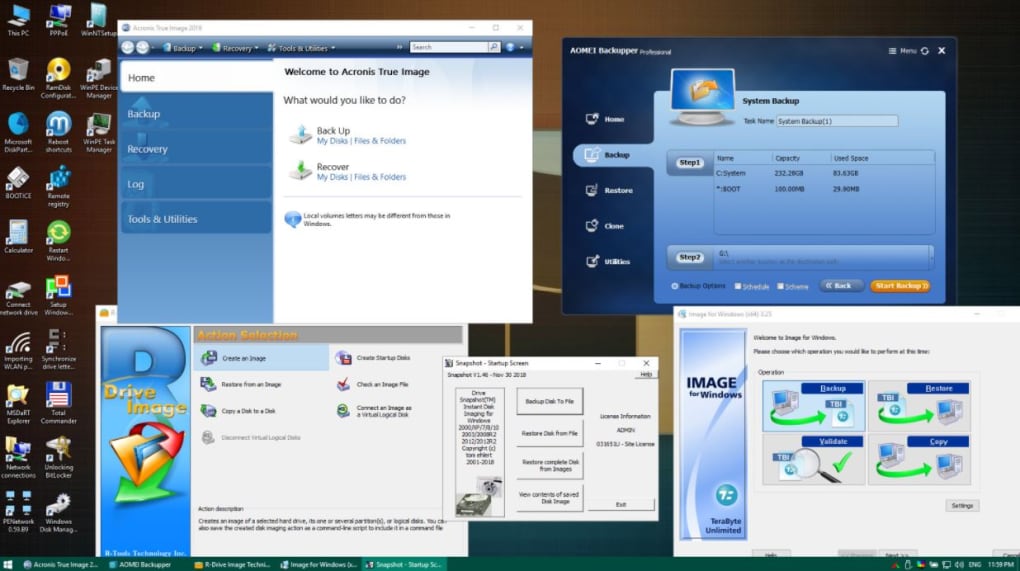
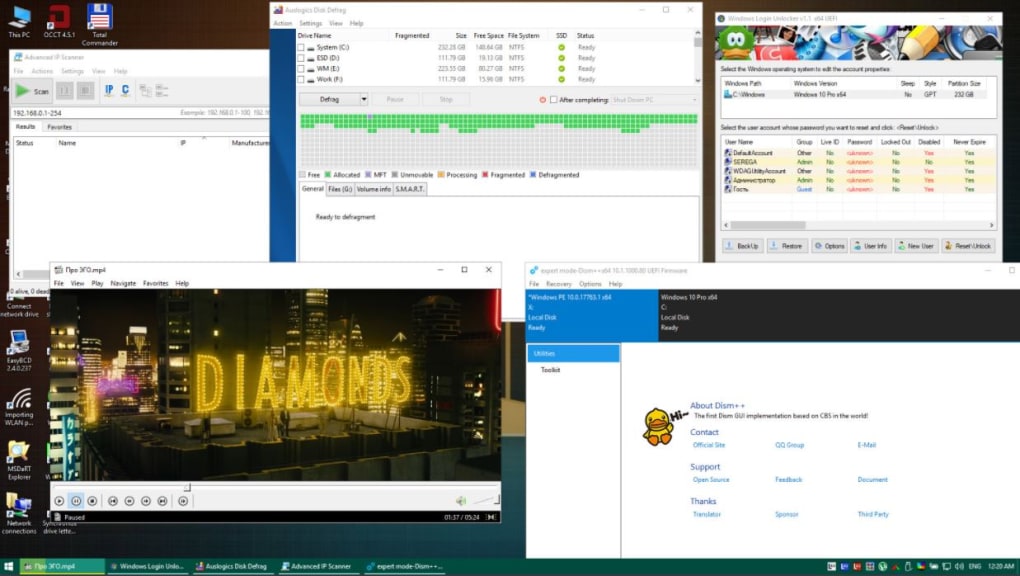
To create a bootable USB drive, use the MakeWinPEMedia command: MakeWinPEMedia /UFD C:\winpe D: (replace D: with your USB drive letter). After the process completes, reboot your PC and boot from the USB. From there, you’ll be greeted with a minimal Windows interface where you can run commands, access drives, and launch recovery tools. For data recovery, navigate to the target drive, use file recovery software, and save recovered files to a connected external drive or network location. The entire process is secure, fast, and doesn’t require installing anything on the host system.
Compatibility and System Requirements for WinPE
WinPE is compatible with a wide range of operating systems, including Windows 10, Windows 11, Windows Server 2019, and earlier versions. It supports both 32-bit and 64-bit architectures, making it suitable for most modern PCs and laptops. Whether you're using a desktop, laptop, or even a virtual machine, WinPE can be deployed as a bootable environment. It works seamlessly on devices with UEFI and legacy BIOS firmware, ensuring broad hardware compatibility.
For optimal performance, your system should meet the following minimum requirements: at least 2GB of RAM (4GB recommended), a USB port (for bootable media), and a working network adapter if you plan to access network resources. WinPE includes built-in support for common storage drivers (SATA, NVMe, USB drives), but you may need to manually add drivers for older or specialized hardware. This is especially important when working with RAID arrays or external enclosures.
WinPE is available for both Windows and Mac users, though the creation process is primarily done on a Windows machine. Mac users can still use WinPE by creating the bootable media on a Windows PC and transferring it to their Mac. However, Macs with Apple Silicon (M1/M2) may face compatibility issues due to lack of native support for some drivers. For Android and iOS users, WinPE cannot be directly installed, but you can access WinPE-based recovery tools via remote desktop or network-based recovery solutions.
Key Features of WinPE
- Bootable rescue environment that runs from RAM
- Supports data recovery from formatted drives, Recycle Bin, memory cards, and digital cameras
- Integrated tools for disk partitioning, file repair, and system diagnostics
- Customizable with third-party utilities and scripts
- Compatible with USB, DVD, and network booting
- Free to download and use from Microsoft’s official site
- Secure, lightweight, and ideal for IT deployment and recovery
Pros and Cons of Using WinPE
Pros
- Free and officially supported by Microsoft
- Lightweight and fast boot times
- Excellent for data recovery and system repair
- Highly customizable for specific use cases
- Can run without a hard drive
- Supports both 32-bit and 64-bit systems
Cons
- Requires technical knowledge to set up and customize
- Not user-friendly for beginners
- Some hardware drivers may need manual addition
- Apple Silicon Macs have limited compatibility
- Cannot be installed directly on Android or iOS devices
Frequently Asked Questions (FAQ)
Is WinPE free to download and use?
Yes, WinPE is completely free to download and use. It is part of the Windows ADK, which Microsoft offers at no cost. You can use it for personal recovery, system deployment, and IT management without any licensing fees.
Can I use WinPE to recover deleted files?
Absolutely. WinPE provides a secure environment to access your drives and run file recovery tools. Even if your OS won’t boot, you can recover deleted files from the Recycle Bin, formatted partitions, or external storage devices.
How do I create a bootable WinPE USB drive?
First, install the Windows ADK and enable the Windows PE component. Use the copype command to create a WinPE image, then customize it with tools. Finally, use MakeWinPEMedia to copy the image to a USB drive. Reboot your PC and select the USB as the boot device.
Does WinPE work on Mac computers?
WinPE can be used on Macs, but only if created on a Windows PC. While Intel-based Macs can boot from a WinPE USB, Apple Silicon Macs (M1/M2) face compatibility issues due to missing drivers and firmware support.
Can I use WinPE on Android or iOS devices?
No, WinPE cannot be installed directly on Android or iOS devices. However, you can access WinPE-based recovery tools remotely via network connections or cloud-based solutions.
Final Thoughts and Call to Action
WinPE is an essential tool for anyone who values system stability, data security, and quick recovery. Whether you're an individual recovering lost photos or an IT professional deploying hundreds of workstations, WinPE delivers unmatched reliability and performance. Its ability to run in memory, support advanced diagnostics, and integrate with third-party tools makes it a top choice for emergency system access.
While it requires some technical know-how, the benefits far outweigh the learning curve. With free access from Microsoft and broad compatibility, WinPE is a must-have in every tech user’s toolkit. Don’t wait for a system crash to prepare—download the Windows ADK today, create your WinPE recovery drive, and stay protected.
Download WinPE now and ensure your data and system are always within reach.







